Using Excel Templates
If you require to build a project plan offline, Accolade Projects provides Excel templates that you may use. Users can export their project into Excel, and from there, the project can be edited in Excel and then re-uploaded into Accolade Projects, updating the project to reflect the changes made. This is particularly useful for adding actuals when in-flight Projects are loaded into Accolade Projects.
To create a project template:
To do this, you must have a PMO user role assigned to your account.
- Log in to Accolade Projects.
- From the navigation bar at the top of the page, select Plan > Project Templates, or select Manage > Projects (Brief) / Projects (Detailed).
- Locate your project, and click on
 located to the left of the respective projects. The Online Project Editor will open.
 - Click on the Reports/Utilities tab.
-
To export the project plan as it is currently in Accolade Projects, click on Export to Excel.
Note: Ensure that you are working offline with the latest version as Accolade Projects will always overwrite the existing project plan in the system when importing the newly edited Excel project plan.
-
Click on the respective check-boxes to include project data, custom attributes, or milestones, as needed.
-
Click Export.
-
Open the Excel file when downloaded. The Excel project template will open:
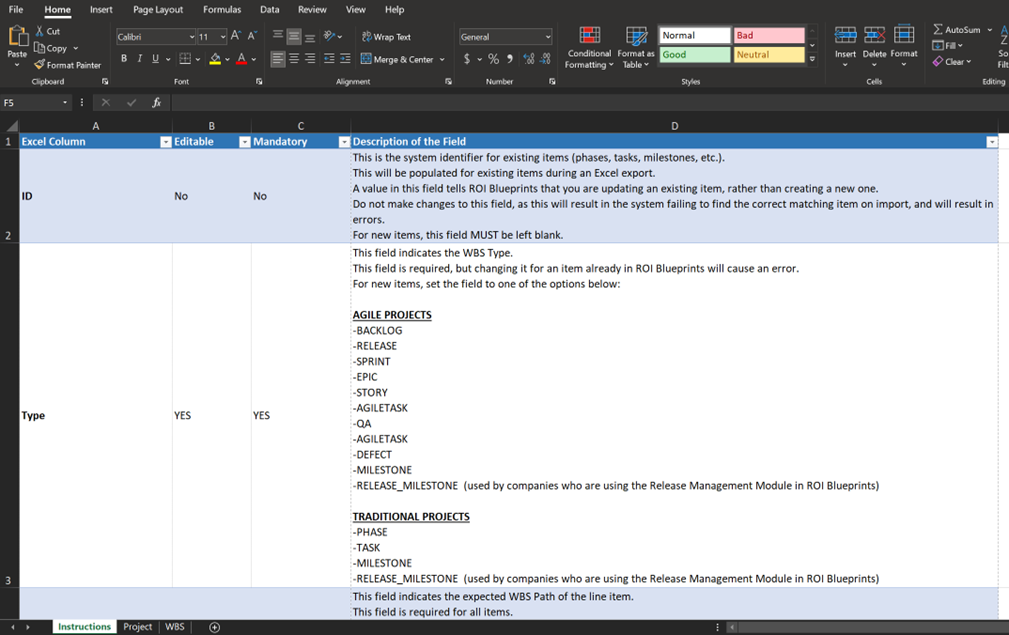
In this Excel workbook template, there are three worksheets:
-
Instructions – This sheet details the fields available in this project plan workbook template, including descriptions of fields, and which fields are editable and/or mandatory. Use this sheet as a guide for building out your project plan. Review this sheet for nomenclature and the specific formats in which data needs to be entered. Instructions can differ depending on project framework as well, so ensure to refer to this sheet.
-
Project – This sheet includes your project’s overview details as in Accolade Projects. Use this sheet to make any edits to your project’s details.
Note: This sheet is included only if you select the project check box while exporting the your project plan.
-
WBS – This sheet includes your project’s Work Breakdown Structure as detailed in Accolade Projects, and is where you will be making any edits to your plan.
-
-
After completing your project plan, save the Excel file.
-
To import your new project plan, go back to Accolade Projects, and navigate to your project’s Reports/Utilities tab, and click on Import from Excel.
-
Click on Select Excel File to Import, browse and open your edited Excel file.
-
Click on Check File.
-
A dialogue will open, displaying any warnings or issues with the import. Read the messages shown, click on the two check boxes once you are ready to import the file, and click on Commit File.
-
Your Excel file has now been successfully imported with its updates.